
ReShade for Star Citizen 4.3.1 DX11 Method

We can all agree that Star Citizen visuals are amazing. But the visuals could use an extra punch of color saturation, and there is still no NVG modes for the entire game.


That is where ReShade comes in to save the day. This post-processing software is used on thousands of games to fake HDR or add in extra effects.


CIG specifically whitelists ReShade files for use in-game, and has prevented tampering with the frame buffer, so what it really does it change the brightness, darkness, color saturation and gamma levels to give your game that extra visual kick.


Check out our guides below and even download our presets from the website!

🌙  HDR & SDR presets (NVG, IR, Darken)

⌨️  Hotkeys to toggle/cycle in flight


🧭  Per-build installs (LIVE / PTU / EPTU)

🛠️  Troubleshooting that actually works


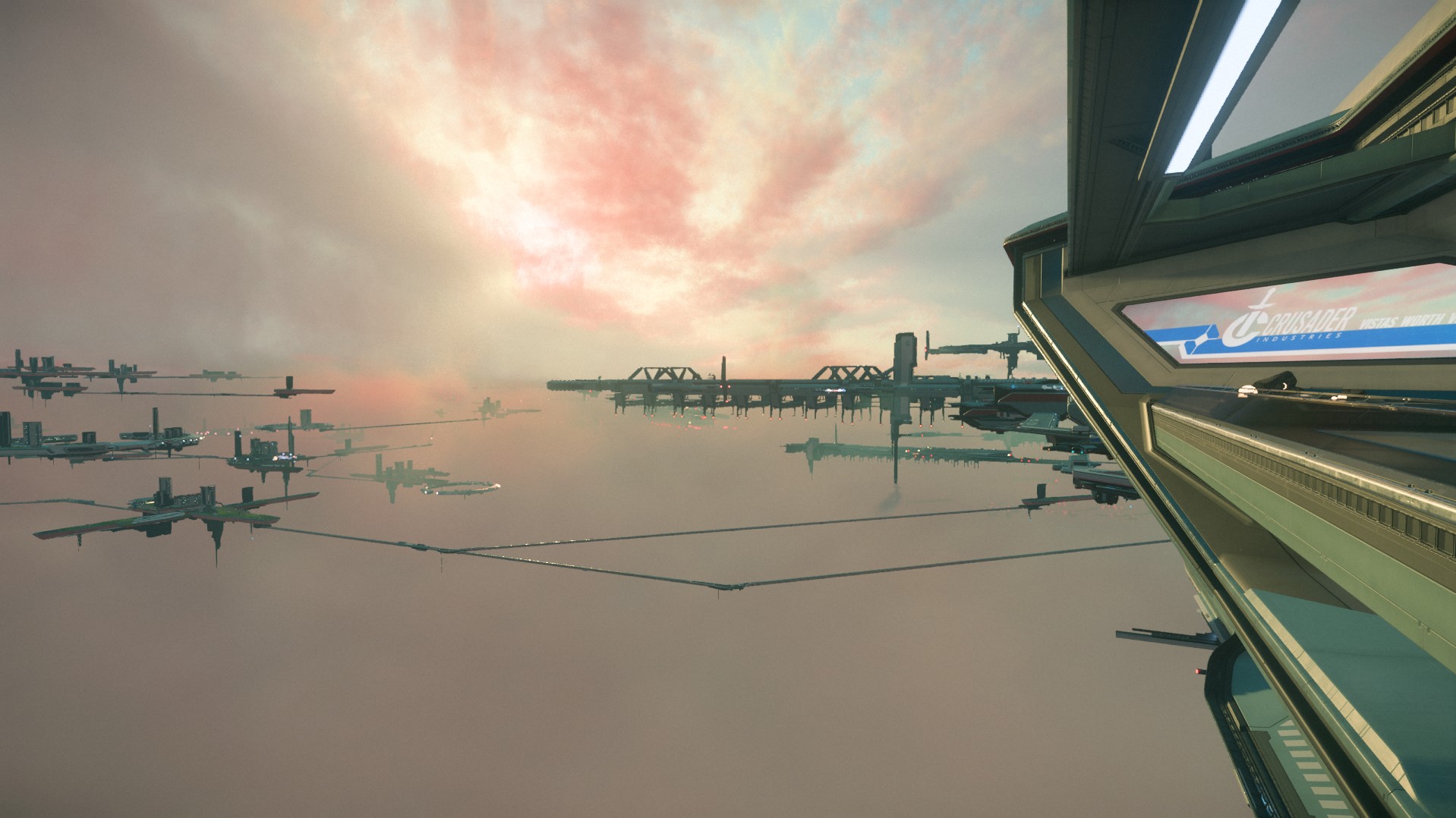
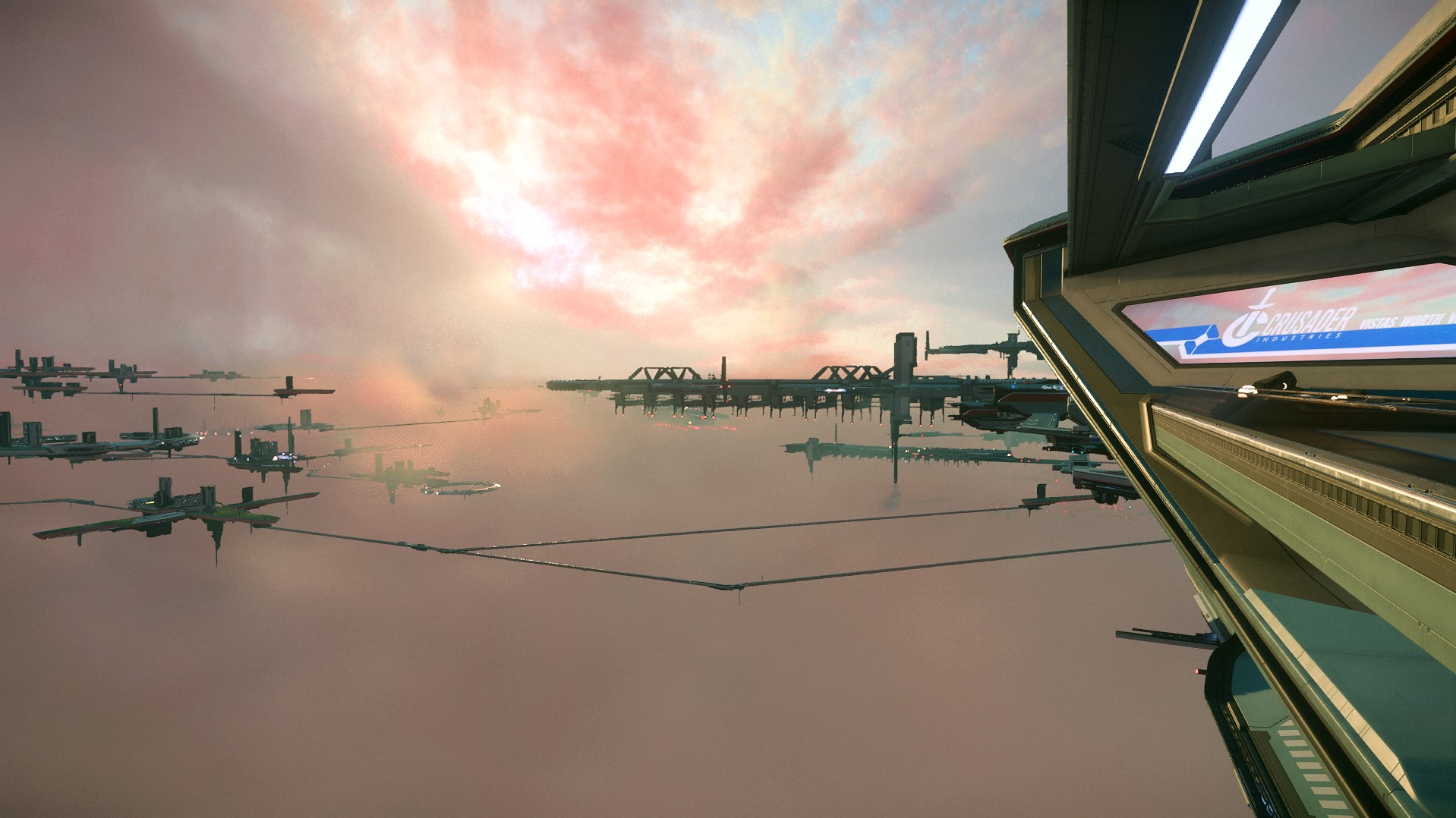
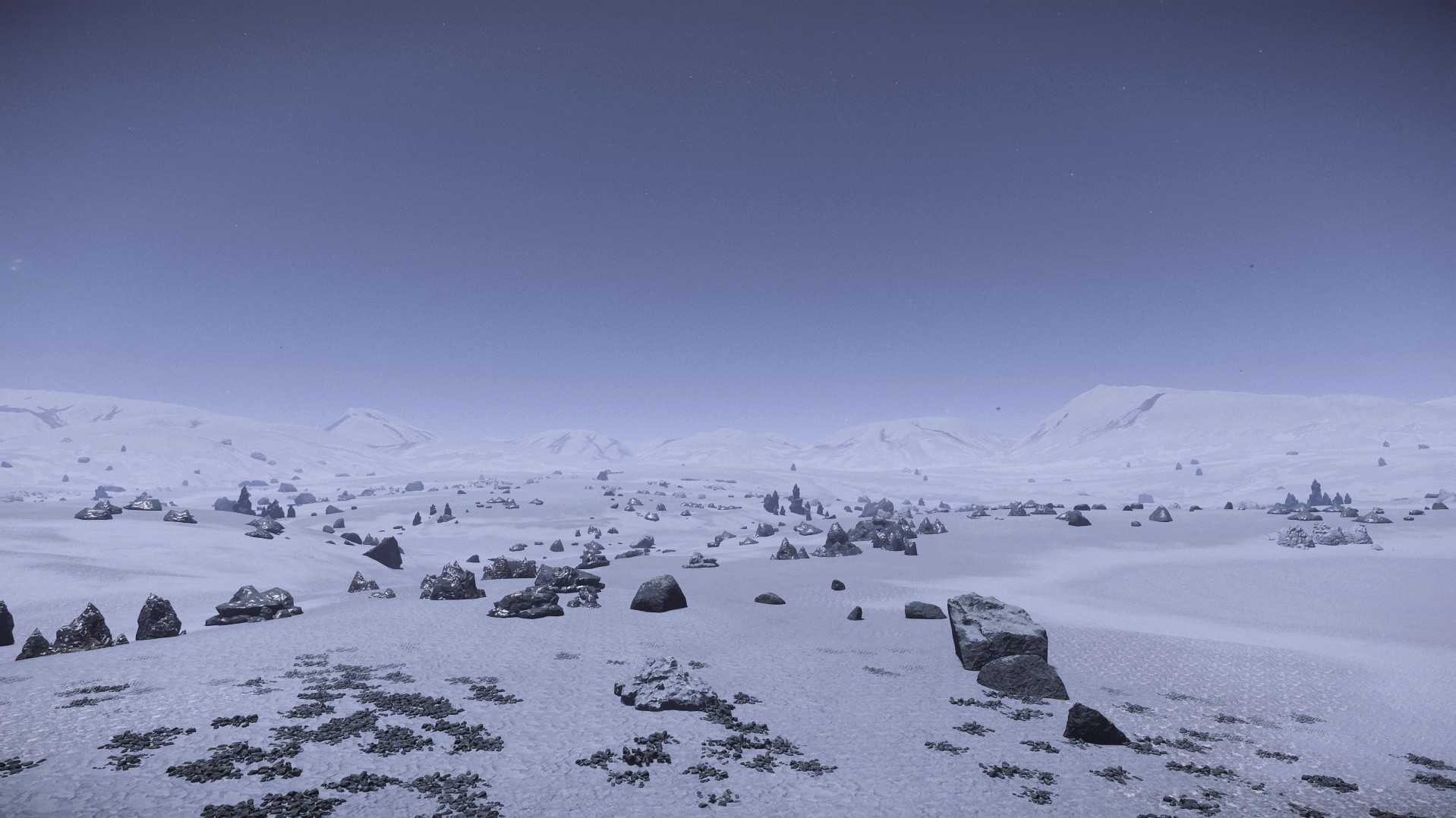
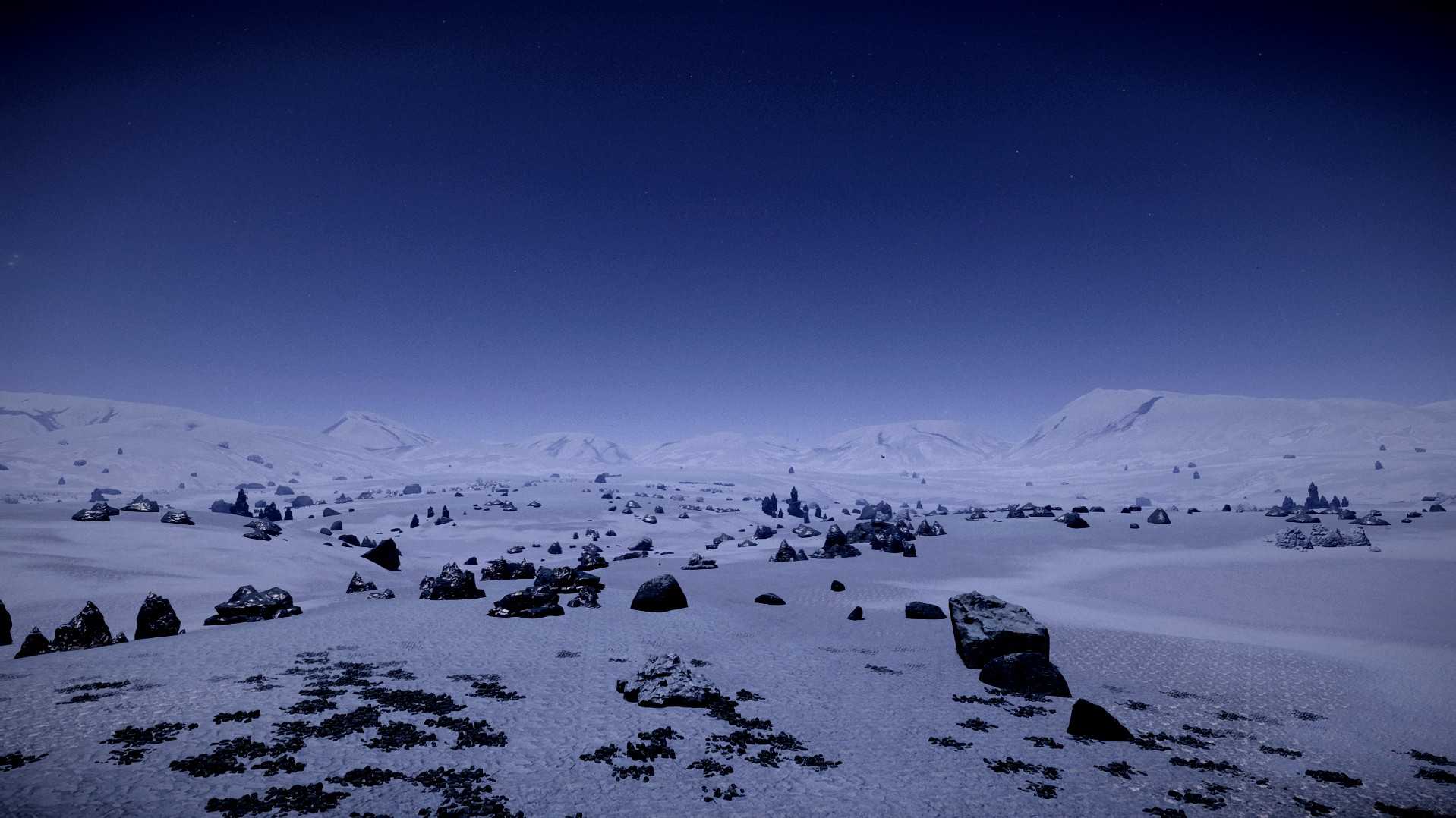
before after

Normal HDR Mode


Off On

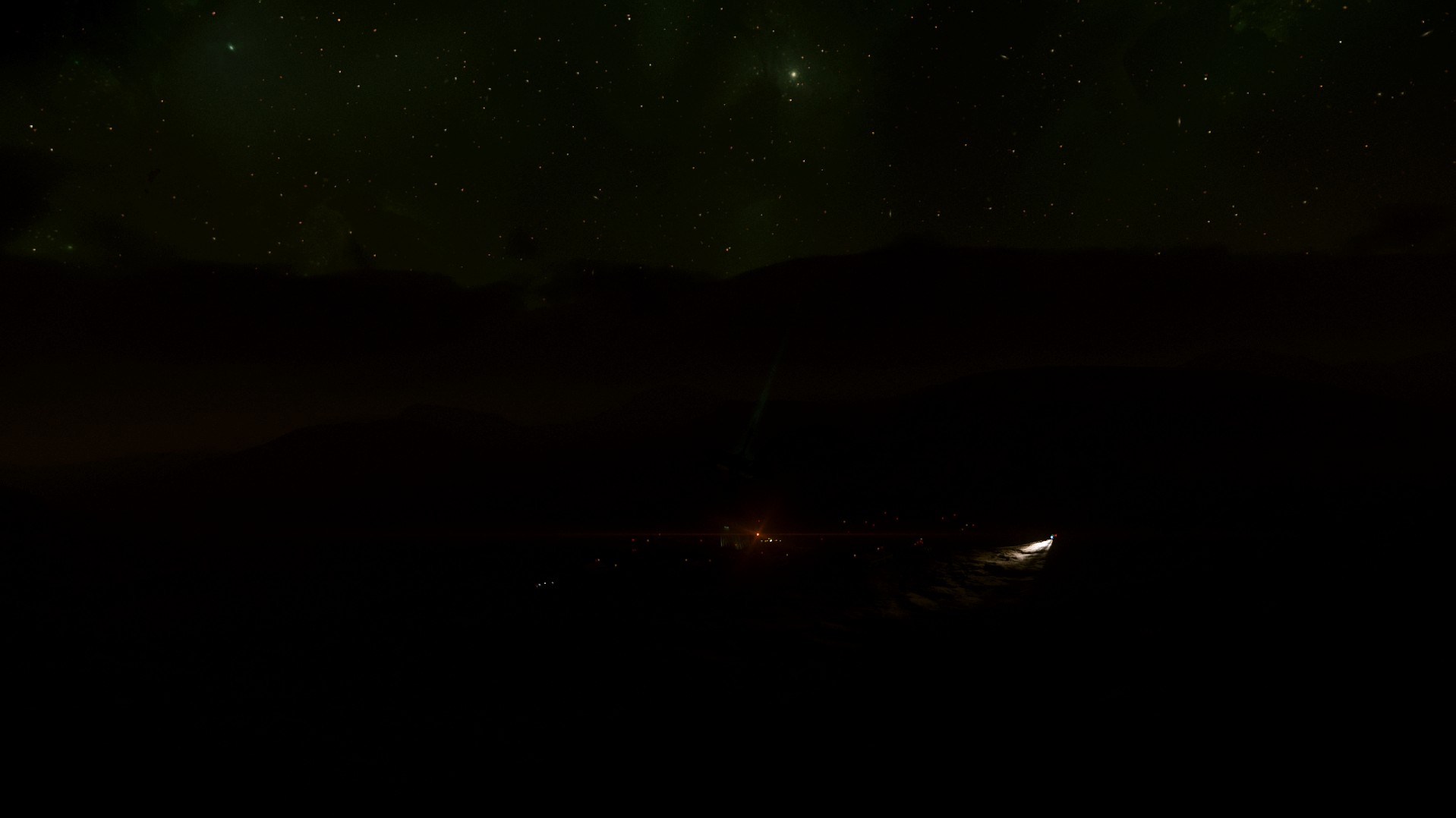
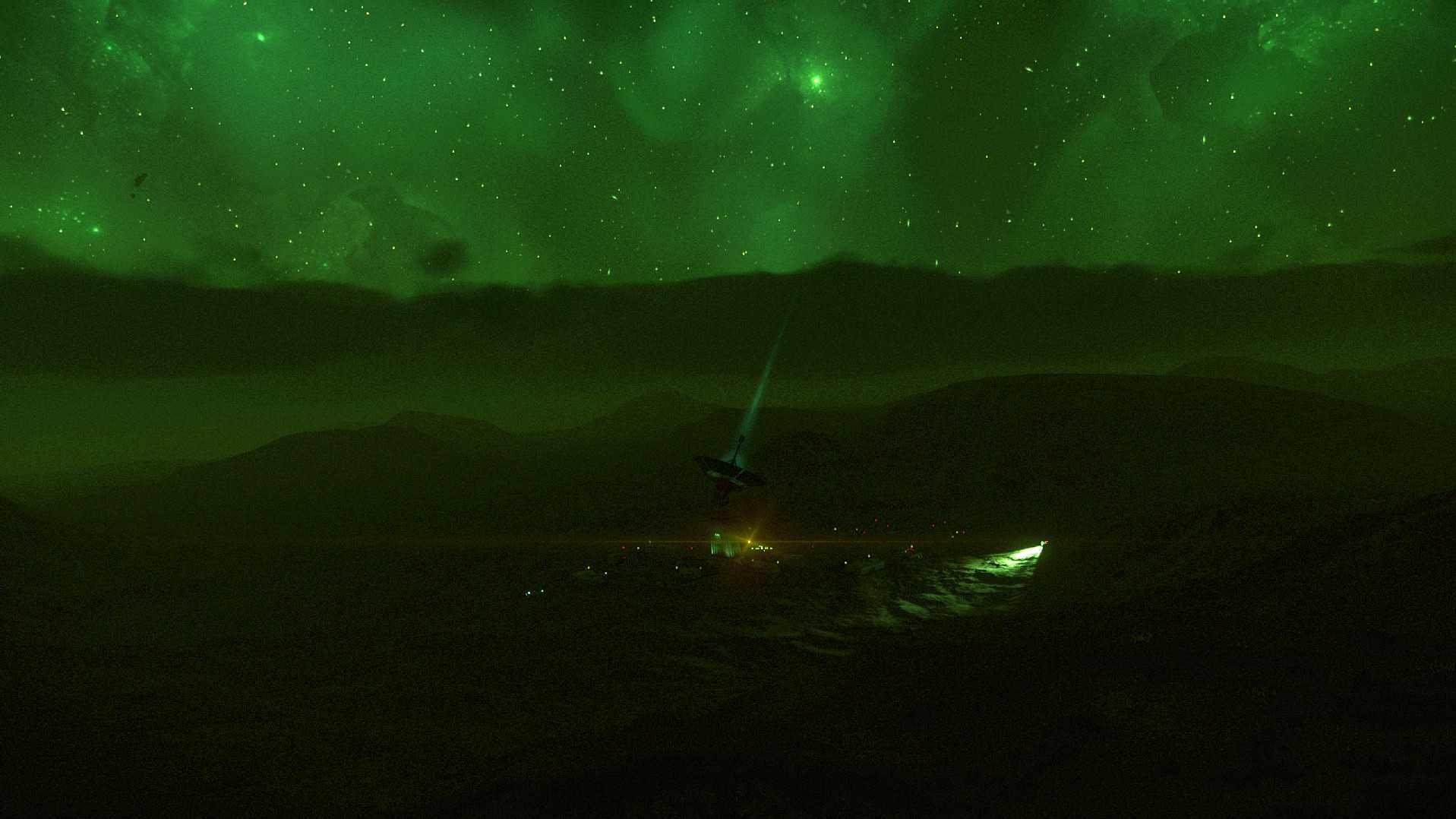
NVG Green (Film Grain)

Classic NVG look + grain for immersion.


Off On

NVG RGB

Classic NVG look + grain for immersion.

Off On

Dark Shades

“Sunglasses” for blinding ice/sand or white‑out storms.

Tutorial Videos


Quick Start


SDR

  1. Download ReShade from their website, and our presets. In the installer choose DirectX 10/11/12 (Do not choose DX9, or Vulkan, even if you use Vulkan in SC)
  2. When choosing a game select browse, install to:
    \StarCitizen\{LIVE/PTU/EPTU}\Bin64\StarCitizen.exe
  3. Select Standard (Default) Effects
  4. Create a folder in Bin64 named reshade-preset, copy presets in this folder
  5. Launch SC => Press Home Key => set your ReShade Hotkeys. Our defaults are: Overlay Toggle = Alt+Home, Next/Previous Preset = Alt+PageDn/PageUp
  6. Test that your presets cycle as normal at the menu


HDR (Must have HDR Monitor)

  1. Turn on HDR in Windows and run Windows HDR Calibration.
  2. In SC → Options → Graphics → Enable HDR.
  3. Install ReShade same as SDR check box for SweetFX to install with ReShade; copy HDR presets to reshade-presets.
  4. In the HDR effects files: copy .fx and .fxh files found in the preset bundle under Bin64/reshade-shaders/Shader to …StarCitizen…Bin64\reshade-shaders\Shaders folder and overwrite default files if prompted (these are used in the HDR presets).
  5. For HDR screenshots: Win+Alt+PrtSc via Game Bar → saves .jxr + .png or use your graphics card software to capture screenshots.

Uninstall ReShade


1.  Delete StarCitizen…\Bin64 folder

2.  Verify files in Star Citizen

3.  Game will redownload (files are small) and rebuild the folder

4.  Enjoy the game without ReShade, we hope to see you in the verse!

Downloads


📥 ReShade (Official)
Install with DirectX 10/11/12. Don’t select Vulkan.


📦 B‑Team Preset Pack (ZIP)
Includes SDR & HDR presets + updated shader files.


Place in …\Bin64\reshade-presets\. Overwrite shader files if prompted.

Hotkeys & Defaults


ActionKey

Notes

Menu OverlayAlt + HomeOpen ReShade menu
Toggle On/OffAlt + Scroll LockQuick compare
Next / Prev PresetAlt + PgDn / Alt + PgUpNumber files to control order
SDR ScreenshotAlt + PrtScSaves to your ReShade path
HDR ScreenshotWin + Alt + PrtScGame Bar → .jxr + .png

Troubleshooting and FAQ


Is ReShade allowed?
     Yes. It’s whitelisted by Easy Anti Cheat for Star Citizen.

Performance impact?
     Typically 0–1 FPS on modern rigs, preset dependent.

Do I need HDR presets?
     Only if Windows + GPU + monitor HDR are enabled.

PTU doesn’t have my presets
     Install ReShade to each build’s Bin64 separately.

Support & Streams
     If you’ve completed the troubleshooting above and still need help, hop into our Discord Public Chat ↗ and include your build (LIVE/PTU), GPU, and what you tried.

     We stream Thursdays 7:00 p.m. MT (YouTube/Twitch) and Sundays 9:00 a.m. MT (Twitch). Swing by with questions.

Â